
When you visit the Secure Remote Session page (Remote.CanAcct.com) you will be prompted with a field for to complete:
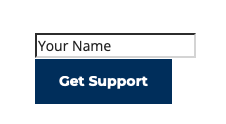
As shown in Figure Start above, you will be prompted to enter your name. Continue by entering your first and last name and then selecting the Get Support button.
Once you have entered your name and selected the above Get Support button you will see a unique support link. Continue by:
- Select the above generated unique support link. A new window or tab will open with the following:
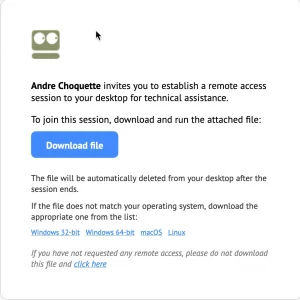
- As shown in the above Figure W01 you will be directed to the 911Remote.ca download window where you can download the small support app. You can select the download button. If the incorrect operating system support app is downloaded, then select from the specific operating system noted.
In order to open the 911Remote.ca support App, look for the download icon (depending on the web browser):
 Google Chrome Download icon.
 Firefox Download icon.
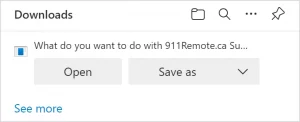 Microsoft Edge icon and Open/Save window.
Except for the Microsoft Edge browser, select the download icon and select the 911Remote support app. For Microsoft Edge, you can instead select the open button shown in the download popup (note above).
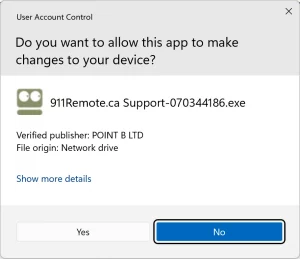
- As shown above in Figure W01, you may be asked to select Yes to the Windows Security Window.

- The 911Remote support App will open and will shown the Waiting for Operator window (note Figure W02 above).

- Once your dedicated accountant connect, the 911Remote window will change to the Operator using the Screen as shown in Figure W03 above). You can select the chat with your dedicated Accountant.
Once the remote session is complete, you can close the 911Remote app by pressing the ALT + Q buttons together.

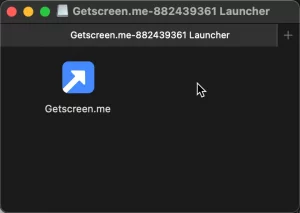
- As shown in Figure M01 above, double-click the Getscreen.me icon. Note: if the app does not open, right-click the icon and select Open.
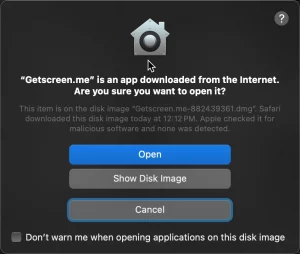
- If you are using the Getscreen.me app for the first time, you may be asked to confirm that you want to open the Getscreen.me app, note Fiqure M02 (above).
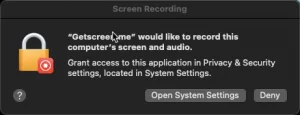
- With using the Getscreen.me App, you will need to make one change in your settings, note Figure M03 (above).
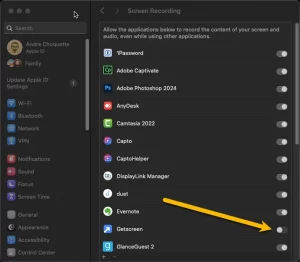
- Locate the Getscreen.me app and select the option to allow screen recording, (note Figure M04 above).
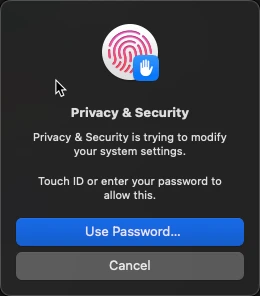
- You may be asked to enter your Mac password, (note Figure M05 above).
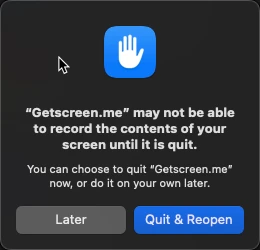
- As show in Figure M06, (above) you may be asked to Quit and ReOpen the Getscreen.me App. You do not need to Quit and Reopen but instead can select the Later button.
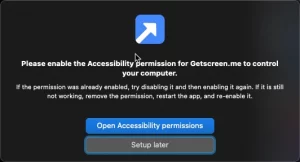
- If you selected the Later button (note Figure M06 above) then you will be shown the Accessibility Permission window, (note Figure M07). You can select the Setup Later as you have completed this step already.
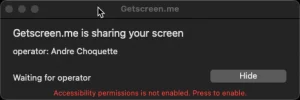
- You are all ready for your Dedicated Accountant to connect (note Figure M08). You can notify your Dedicated Accountant that you are ready for them to remotely connect to your Mac.
When the remote session is complete, you can close the Getscreen.me App by pressing the COMMAND + Q keys.