
You should have received a unique transcription URL from your dedicated accountant. This means that your recent online or in-person meeting has been securely transcribed so that both you and your dedicated accountant can refer back to the meeting audio, screenshots (if online) and text transcription.
This page is meant to help you navigate your Otter transcription. Otter refers to the secure Otter.AI engine, which analyzed your recent meetings’ audio and, in turn, generated full transcriptions, summaries, and, if the meeting was online, screenshots of the original meeting.
Note that our office does not usually edit the Otter—AI-generated transcription (except for assigning a name to each speaker for reference )¹.
Within the email that your dedicated accountant sent you, you will see your default web browser open up the Otter.AI transcription (note that each Figure can be enlarged by selecting the image with either your left mouse button or your finger/stylus):
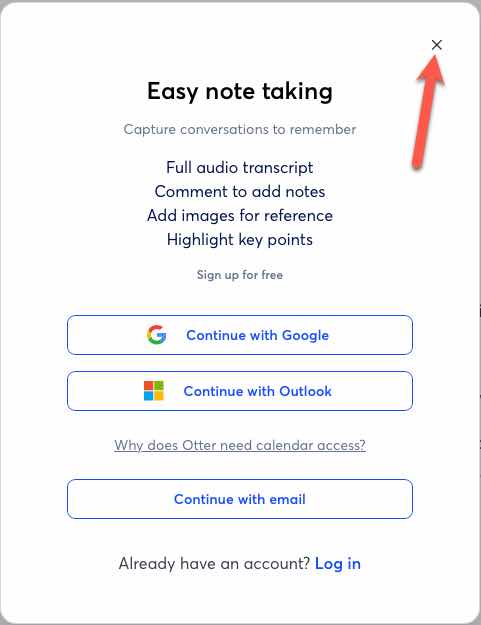
As shown in Figure 1 (above), you will be asked to create an Otter.AI account. While you can create a Free Otter.AI account, it is not required to view or listen to your meeting transcription, but is necessary if you want to remove the additional Sign Up / Log In pop-up (Note Figure 3 below).
If you DO NOT want to create an OTTER.AI, select the small X in the pop-up window (note the red arrow showing this small X in Figure 1).

At the bottom of your screen, you will see the Website Cookies notification window. Selecting Accept All Cookies allows the storage of local parameters (excluding your audio or transcription data) on your device to help you return to the Otter.AI website quickly in the future. At the same time, Reject All will prevent this from completing. You can also select the Cookies Settings to modify which navigation data is stored. We suggest that you choose Accept All Cookies, as this allows full functionality of the Otter.AI website app.

As shown in Figure 3, Ottar.AI will display a second login pop-up. As noted above, you can either leave this button visible or sign up for a free Otter.AI viewing account. If you opt to create a free Otter.AI account, you would select the Log in option.

As shown at the bottom of your Otter.AI transcription screen is the Audio Control Bar, Note Figure 4 (above).
This bar is broken into the audio controls (left side) and Social Media icons (for sharing on the right side.
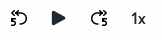
As shown in Figure 5 above, you will see four Audio Controls as noted:
- The Back Arrow with a 5 will move the audio back 5 seconds.
- The play button will start playing the audio, and the above text will be highlighted in sequence. Once you start playing the audio, you will notice that the play button is replaced by a pause button (which pauses the audio).
- Forward Arrow with a 5 will skip ahead 5 seconds.
- The 1X will allow paid Otter users to slow down or speed up audio.
You can return to this secure Otter.AI transcription multiple times. If you have selected to allow the storage of Website Cookies (Note Figure 2 above), it will remember your position within the transcription.
Note:
-
Otter.AI is an external secure Audio Transcription service provider. The only personal data shared is your name, used to identify you as a meeting attendee. Otter.AI securely retains this sharing. As per the paid Terms of Service Agreement (select here to view this Otter.AI document), we have with Otter.AI, neither your name nor your meeting content is publicly shared or sold to marketing or similar companies. You can also view the Otter.AI Privacy Agreement by selecting this link. If you should wish to have this or any other Otter.AI transcription note removed from Otter.AI, please contact your dedicated accountant with this request (in writing).