

Once you have logged into your Canada Revenue Account, continue with the following instructions.
Note that if you select any of the following Figure images, they will display an enlarged Figure image:
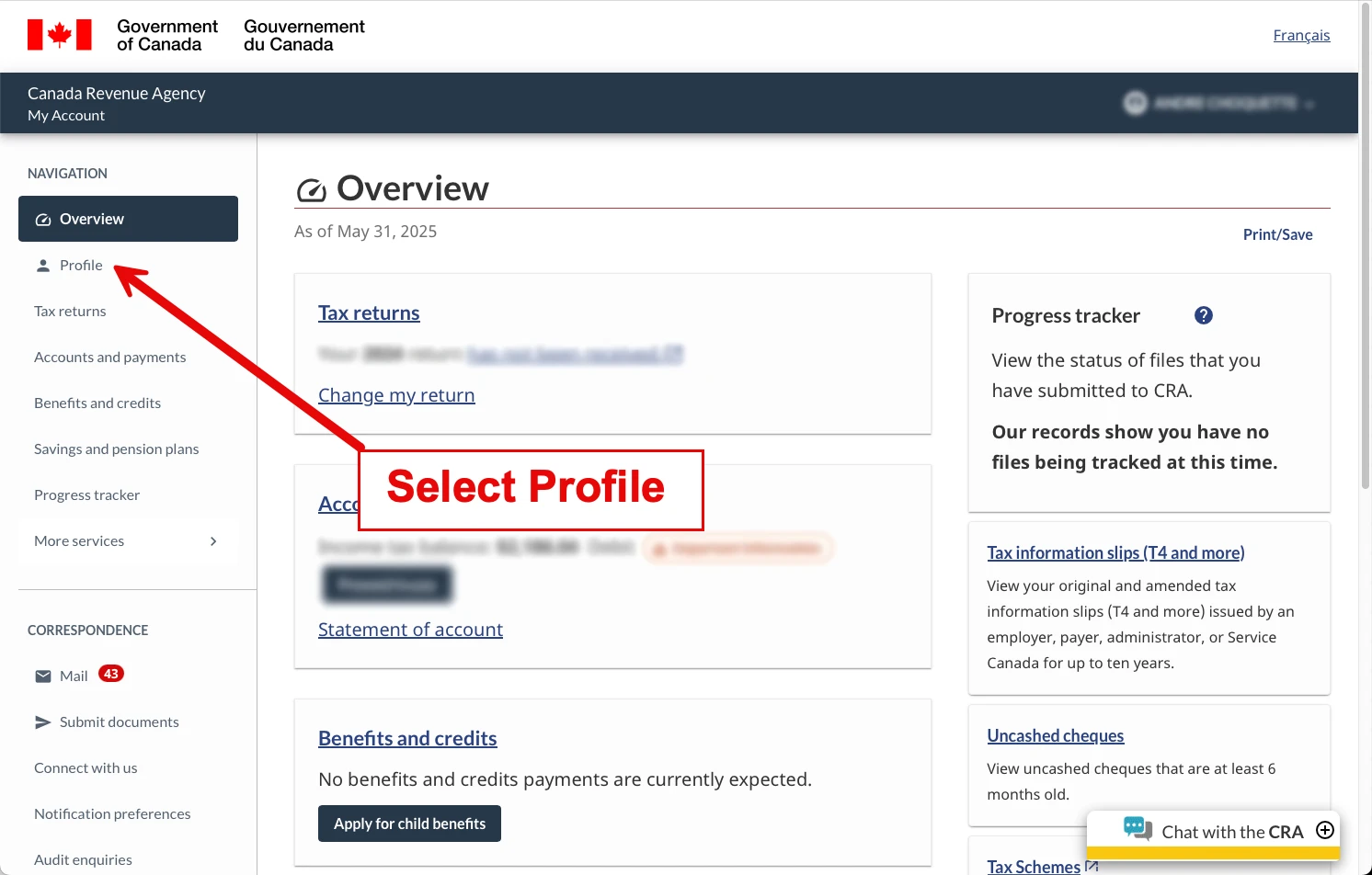
- Now that you have logged into your Canada Revenue Account, as shown in Figure T1A.01 above, select the Profile menu option (left side).
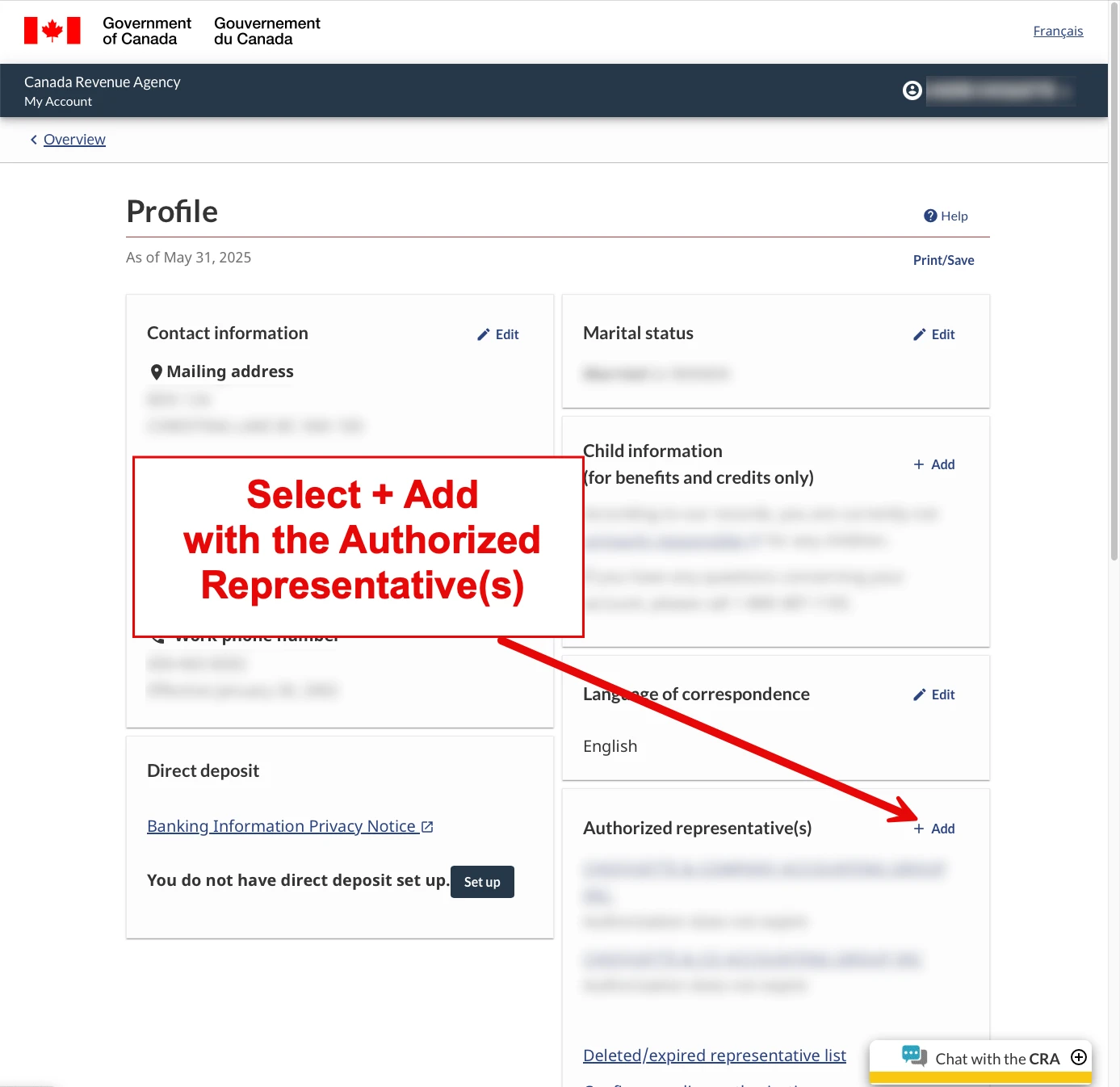
- As shown in Figure T1A.02 (note above), select the +Add option within the Authorized Representative. Note, you may need to scroll down to view this section.
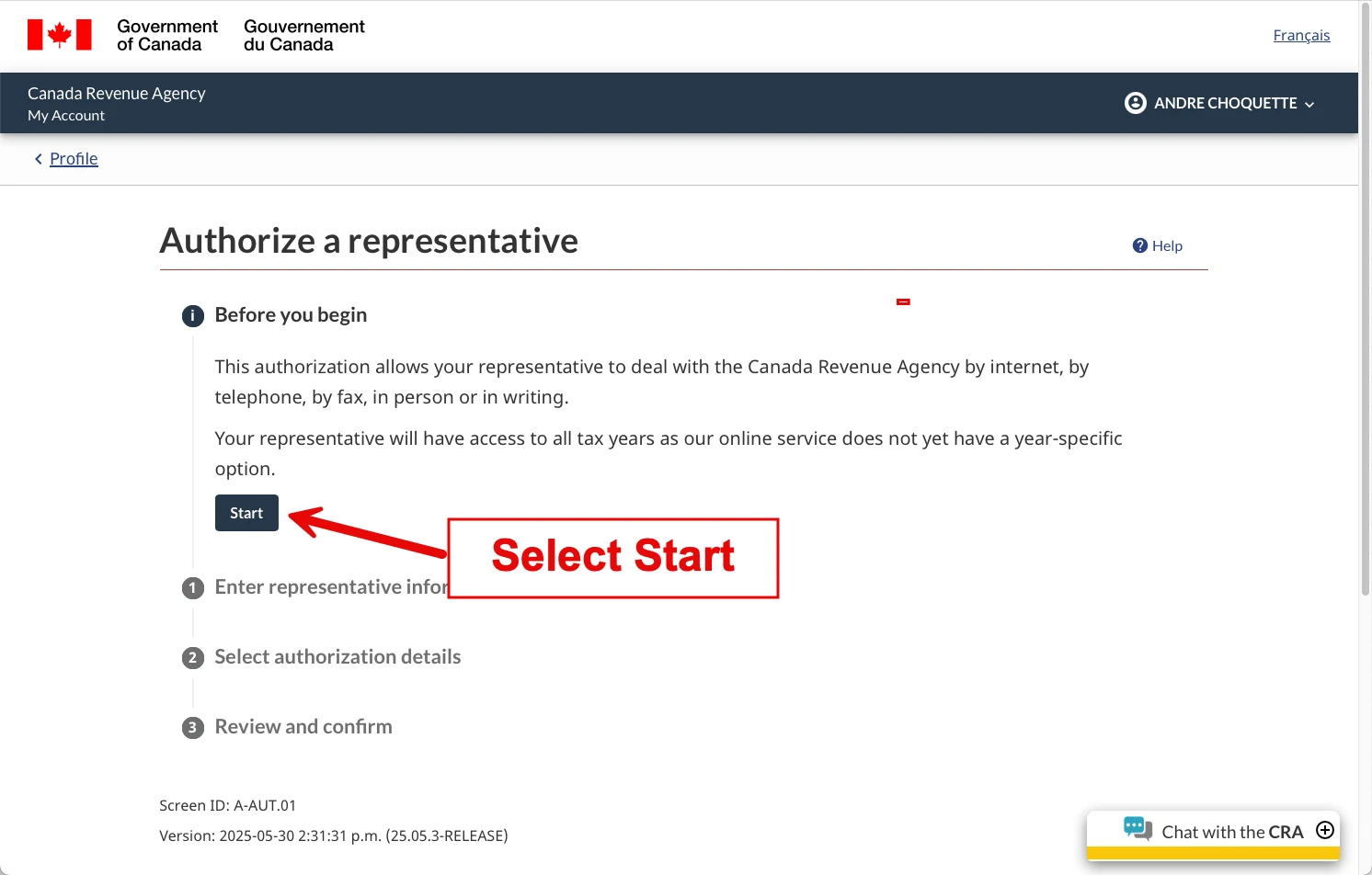
- As shown above in Figure T1A.03, select the Start option within the Authorized Representative Start window.
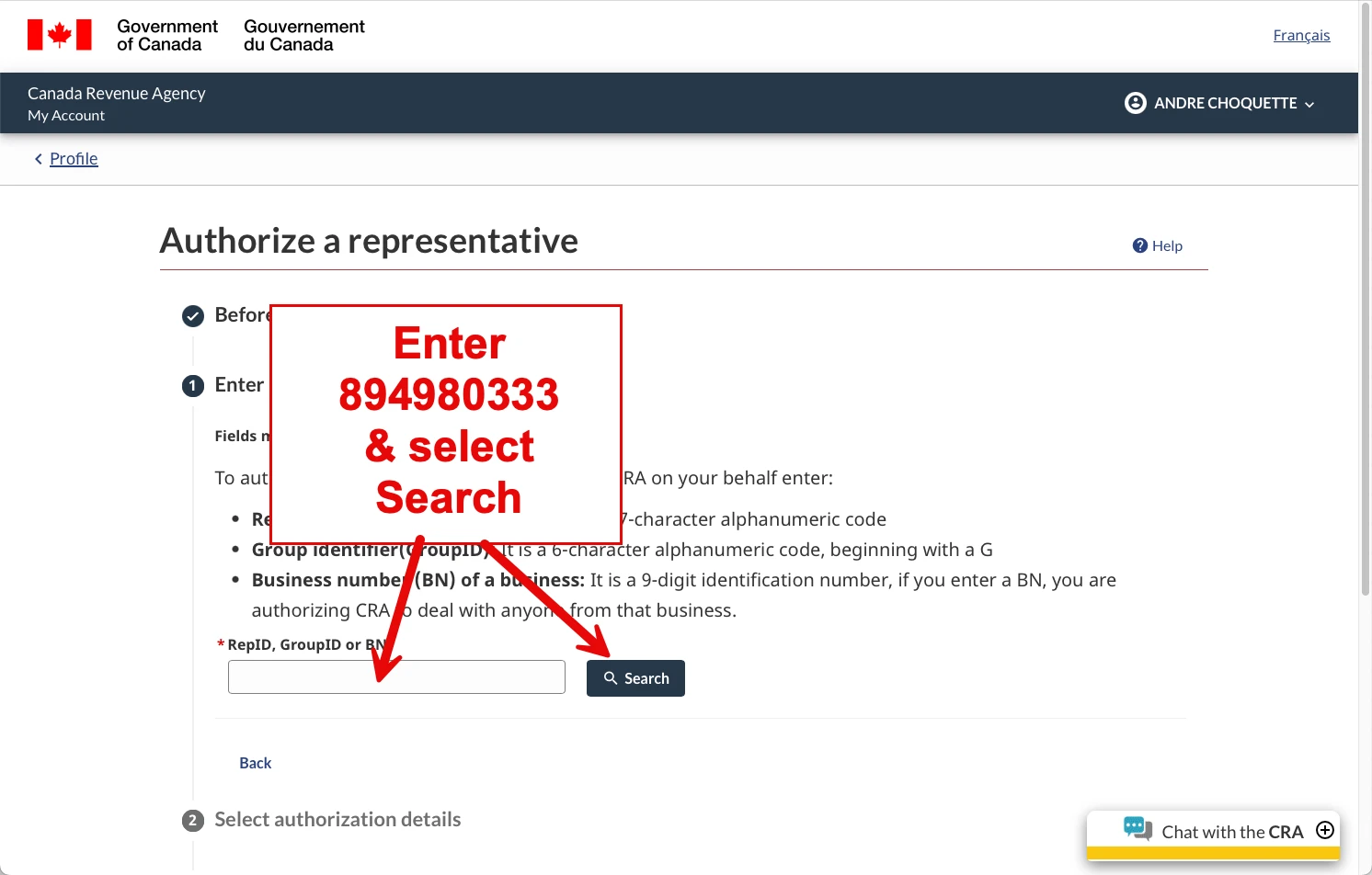
- Continue by entering our firm’s Business Number (894980333) and select the Start button within the Search Business Number screen (shown above in Figure T1A.04).
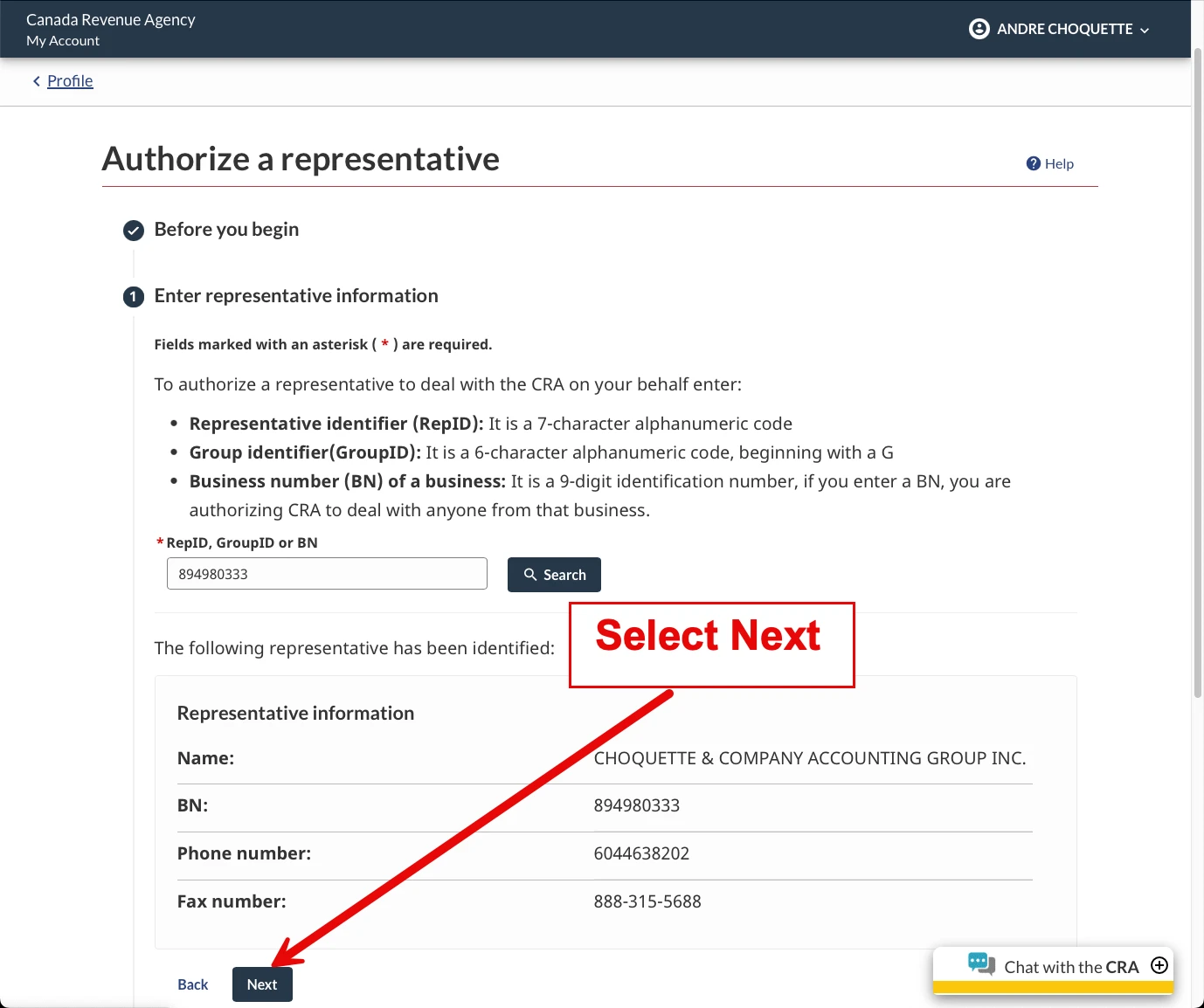
- As shown above in Figure T1A.05, select the Next button to confirm our firm.
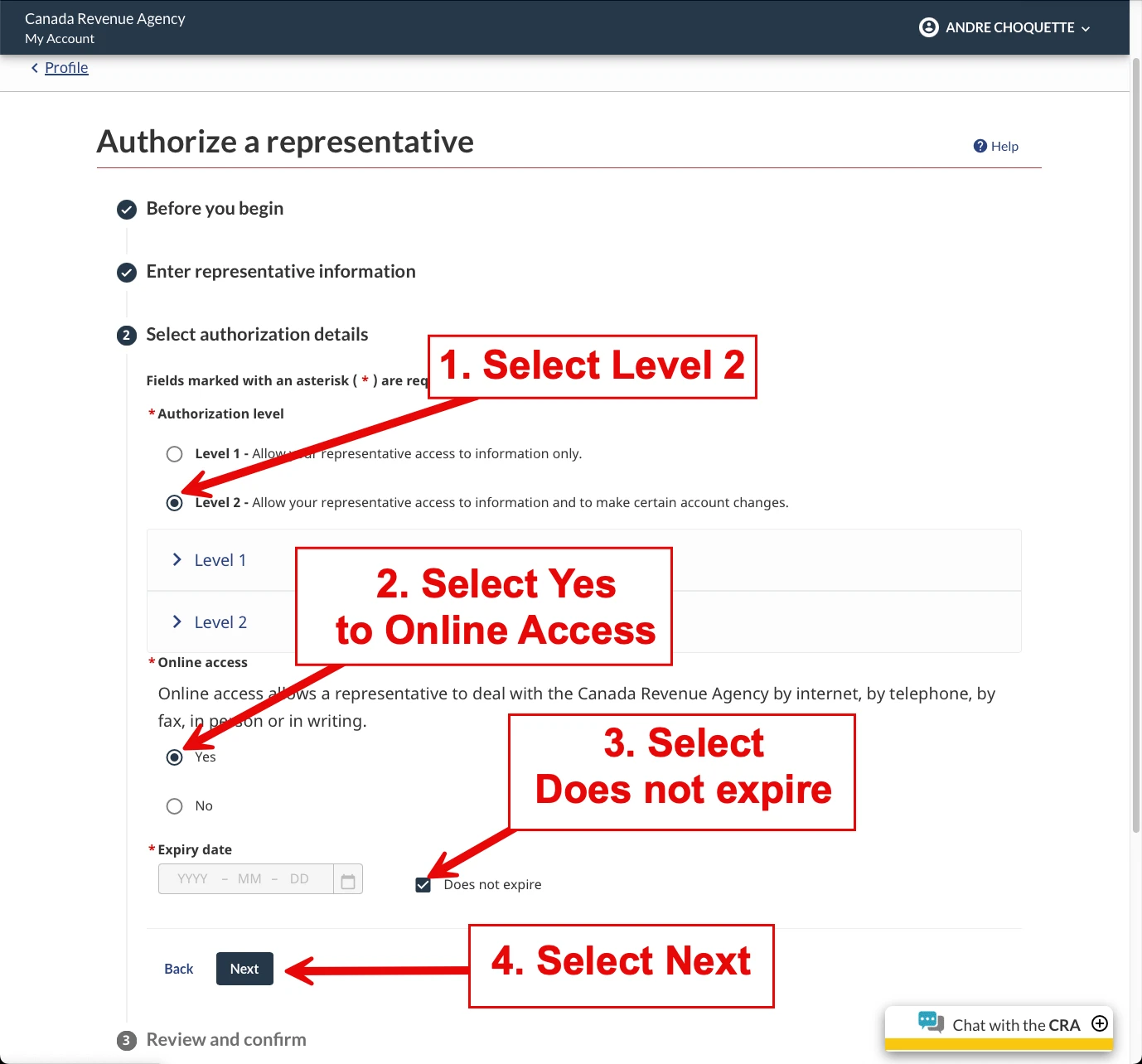
- Within the Authorization Options window (note Figure T1A.06 above), select the following:
- Select Level 2 as the Authorization level, as this will allow us not only to view your tax information but also to make changes or corrections.
- Select ‘Yes’ to Online Access, which will allow us to contact the Canada Revenue Agency (CRA) via online, Phone, or Mail access.
- Select Does not expire as the Expiry Date, meaning that our firm’s authorization will be ongoing.
- Once you have made the above selections, select the Next button.
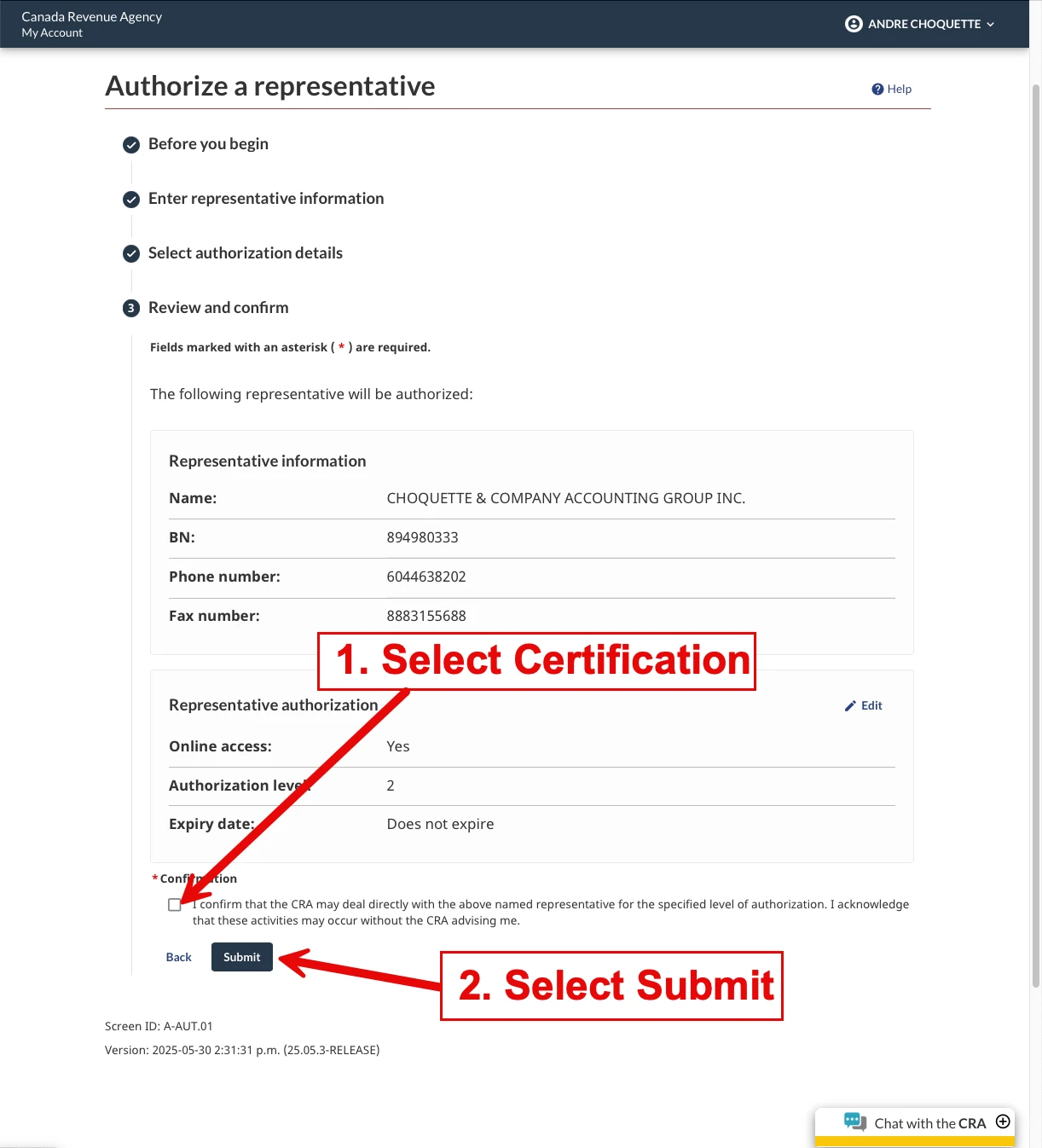
- Please select the Certification option followed by the Submit button as shown within Figure T1A.07 (note above).
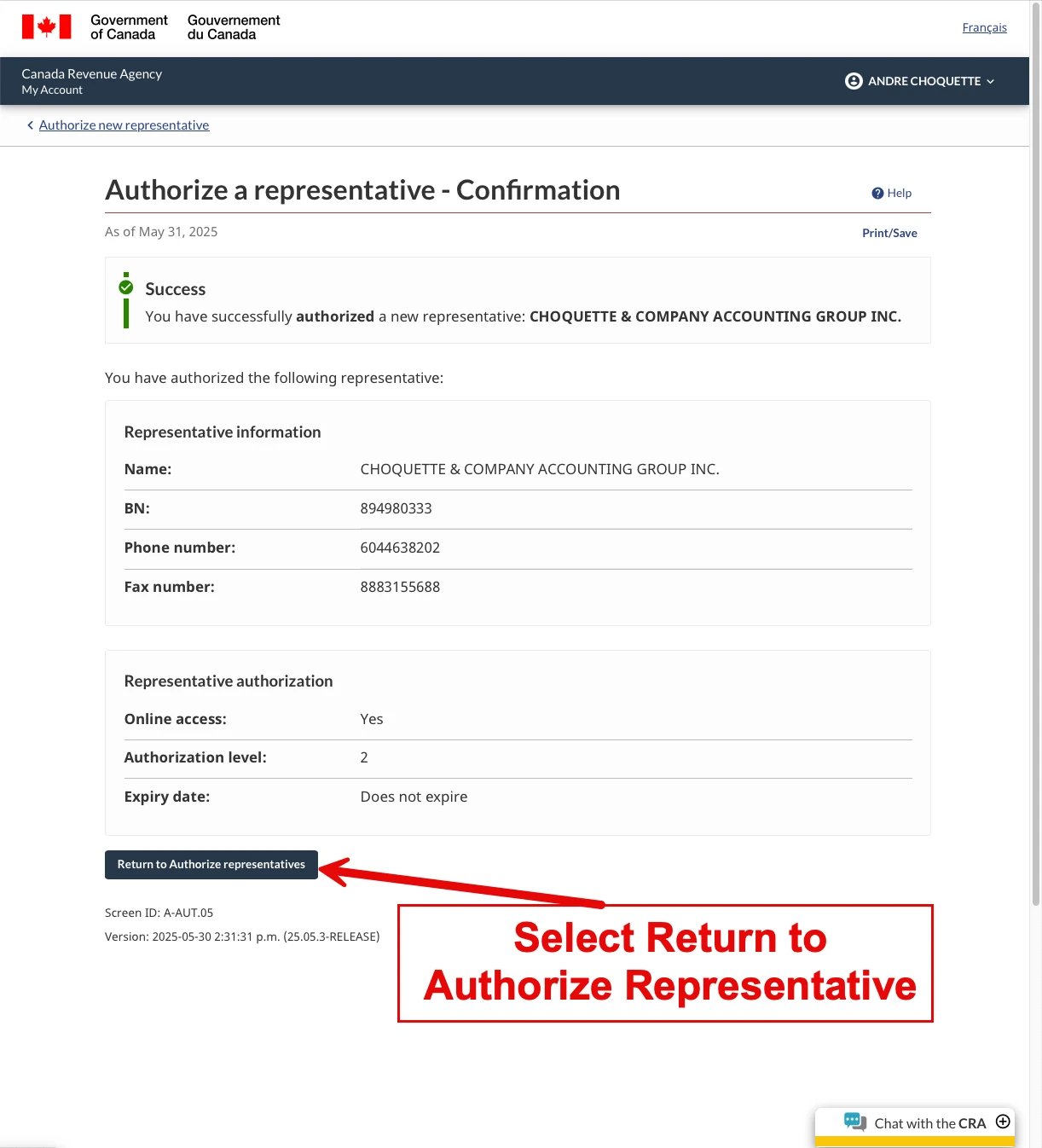
- Our firm’s authorization will be added (note Figure T1A.08 above). You can then select the Return to Authorized Representative button.
If you experience any issues in authorizing our firm with your Canada Revenue Agency, don’t hesitate to get in touch with your dedicated accountant, who will provide you with individual assistance.
Once you have authorized our firm, please either contact your dedicated accountant or select here to send our firm a confirmation email.

The following are the instructions for either adding a new Canada Revenue Agency (CRA) Business (T2) New Authorization or Confirming an Existing Authorization from our firm:

Click here to access the CRA myCRA Business page, and as shown in Figure T2.A1, log into your myCRA Business Account either through a Sign-In Partner or using your UserName and Password.

As shown in Figure T2.A2, select the Profile option in the myCRA Business Toolbar (at the top of the window).

Select the Manage Authorized Representative, as shown in Figure T2.A3.

As shown in Figure T2.A4, you will be shown any existing Authorized Representatives.
If you wish to remove any existing Authorized Representatives with the following options:
- Authorize a representative allowing you to add our firm as a new representative (instructions below).
- Confirm pending authorizations is to confirm a prior submitted authorized representative. While this is the normal process, due to technical issues, you will be adding our firm instead (instructions below).
Select the Authorize a representative button as shown in Figure T2.A4 (above).

You will then be asked to provide the REPID, GroupID or BN as shown in Figure T2.A5 – Authorize New Representative (above).
Please continue by entering our firm’s Business Number 894980333 in the REPID, GroupID, or BN field, as shown in Figure T2.A5 (above).

You will then be asked to select the Authorization Level, Expiry Date, and Programs to which our firm will have Authorized Access, as shown in Figure T2.A6—Add New Rep—Authorize Level and Programs (above).
Continue by selecting:
- Update and view (Level 2) as the Level of Authorization.
- Leave the Expiry Date blank.
- Select the All Accounts option.

With the above selections (Level 2, No Expiry Date and All Accounts), your window should resemble T2.A7 – New Rep Level 2 and All Programs selected (as shown above).

You will be asked to confirm that our firm can have authorized access, as shown in T2.A8 – New Rep Review Entered Information (Note above).
Continue by selecting the checkbox for the I Confirm that the Canada Revenue Agency (CRA) can deal directly with this representative on my behalf question (as shown in Figure T2.A8 above).

Our firm’s confirmation added as a Level 2, No Expiry Date, and All Accounts will be shown (note T2.A9—New Authorized Representative Addition Confirmed above).
Please then send our office a quick SMS/Text/MMS at 604-813-3539 (Click to SMS/Text/MMS Now) to let us know that you have added our firm as your authorized representative. Our firm will log into the CRA Authorized Representative online portal to confirm access to all of your CRA business accounts (level 2) with no expiry date (required).
If you have any questions, concerns, or problems completing the above, please contact our firm by SMS/Text/MMS at 604-813-3539 (Click to SMS/Text/MMS Now), giving us as much information as possible about your questions, concerns, or problems so that our firm can remedy this with you.
The following are the instructions for either adding a new Canada Revenue Agency (CRA) Business (T2) New Authorization or Confirming an Existing Authorization from our firm:

- Click here to access the CRA myCRA Business page, and as shown in Figure T2.B1 (Select the image to enlarge), log into your myCRA Business Account either through a Sign-In Partner or using your UserName and Password.

- As shown in Figure T2.B2 (above, Select the image to enlarge), select the Profile option in the myCRA Business Toolbar (at the top of the window).

- Select the Manage Authorized Representative, as shown in Figure T2.B3, (Select the image to enlarge).

- You will be shown the Authorized Representatives page (Figure T2.B4 above; Select the Image to Enlarge). You should see our company name, Choquette & Company Accounting Group Inc., along with our business number. Continue by selecting the blue Authorize a Representative button. Note: If you do not see our company name, please click here to send us an e-mail, and we will make the Business Request again with the CRA (Request for Authorization expires after 10 business days). You can also send us an SMS/Text/MMS us at 604-813-3539 (Click to SMS/Text/MMS Now) to notify us (be sure to include your business number and company name).

- Select the blue Confirm Pending Authorizations button, as shown in Figure T2.B5 (above, Select the Image to Enlarge).
The confirmation of our firm as your Authorized Representative with your Business is now completed. We ask that you click here to send us this e-mail to let us know that this important step has been completed. You can also send us a quick SMS/Text/MMS at 604-813-3539 (Click to SMS/Text/MMS Now) to notify us (be sure to include your business number and company name in the SMS/Text.